Download WIC Reset Utility Tool – Epson L3050 resetter to reset Epson L3050 printer waste ink counter overflow and reset flashing lights problem condition on my Epson L3050 printer.
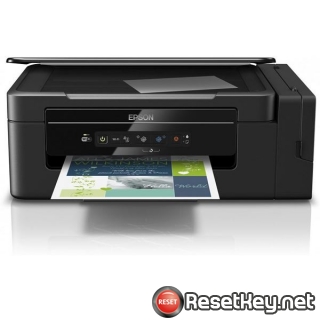
If Epson L3050 printer shows error message “Service Required – The Printer’s Ink Pads at the end of Their service life” and Epson L3050 printer has red light blinking error: You should be download and reset your Epson L3050 printer Waste Ink Pads Counter with Epson L3050 Resetter (How to reset)
Epson L3050 printer Waste Ink Counter overflow error and here’s how to repair that
All Epson L3050 printers have a waste ink counter that estimates the amount of waste ink discharged into the waste ink tray during print head cleaning.
When the waste ink counter is full, the printer will display a waste ink counter overflow error. Below are some of the clearest signs of this:
How to recognise Epson L3050 printer waste ink pad counter overflow
1. The Epson L3050 printer suddenly stops working after a printhead cleaning. The printer may have been working normally in the previous session; however, after cleaning the printhead, the waste ink counter increases by 2% or more, potentially causing the counter to become full.
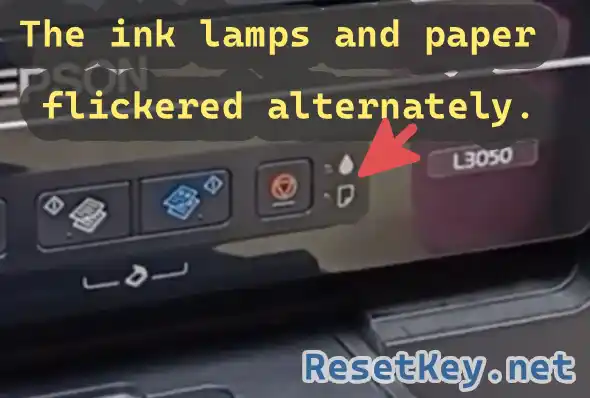
2. Your printer’s red light blinking error
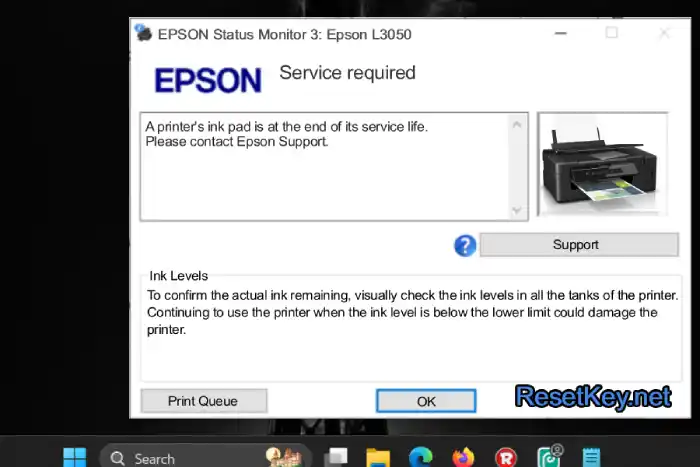
3. Epson Status Monitor 3 shows error message “A printer’s ink pad is at the end of its service life. Please contact Epson Support”
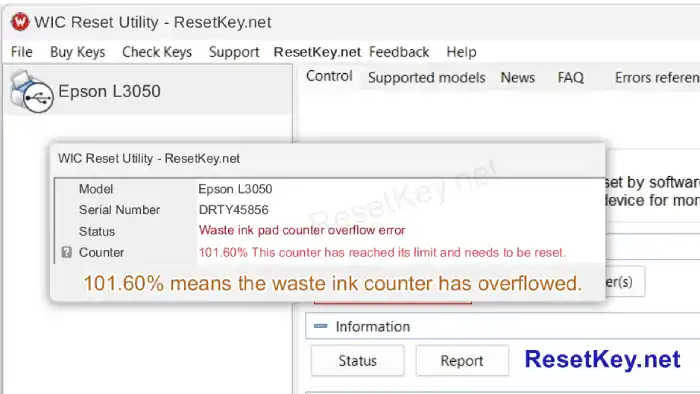
4. Check Waste Ink Counter by WIC Reset: Run Wic Reset Utility tool, click “Read Waste Counters” button, full counter is 100%. Epson L3050 Waste ink Counter overflow means that counters values are more than 100%.
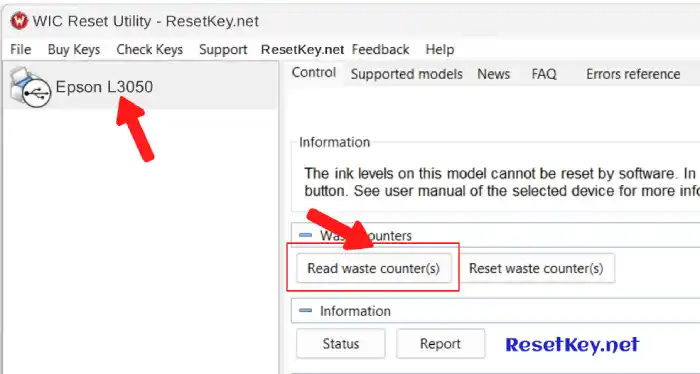
A waste ink counter at 101.60% as shown below means it is full.
Reset your Epson L3050 printer by WIC Reset Tool
Step 1: Free Download WIC Reset Utility Tools
We have both version for Windows and Mac OS X. You can download WIC Reset Utility in [Download Page] and also by direct link below:
Step 2: Get WIC Reset Key
The One Time RESET KEY is required for RESET FUNCTION when you are using the WIC Reset utility to reset Epson L3050 printer.
Wic Reset Key for use with Epson Adjustment Program (WICReset on Windows, iWIC on Mac) is ready for purchase on ResetKey.net

Step 3: How to reset your Epson L3050 printing device with WIC Reset Utility
Reset Epson L3050 printer by Epson adjustment program is very easy. You can easy reset your Epson L3050 printer by Yourself
This is quick guide:
Before reset Epson L3050 printer:
+ Disable all USB connection and printer
+ Cancel all printing job
+ Connect Epson L3050 printer and your computer by USB cable only. (You can not reset Epson L3050 with WIFI and also LAN network)
+ Some printer you have to Disable the Epson Status Monitor
+ Connect your computer to the internet.
+ Download, setup then run WIC Reset Utility tool
Reset Epson L3050 printer:
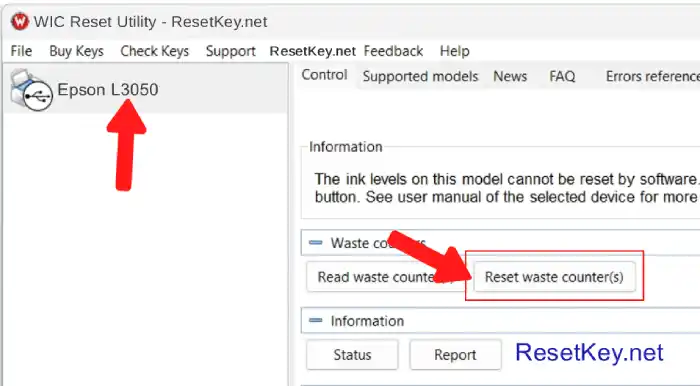
+ Select Epson L3050 printer then Click “Reset Waste Counters” button:
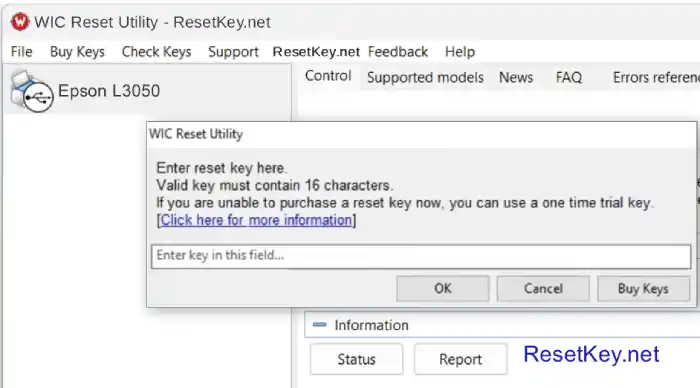
+ Enter Epson L3050 Wic Reset Key you have received in email:
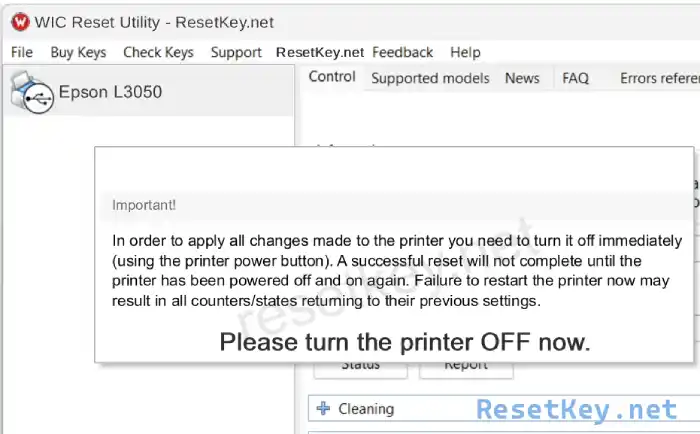
+ Wait a second, when WIC Reset Tool says you turn printer OFF, turn OFF Epson L3050 printer.
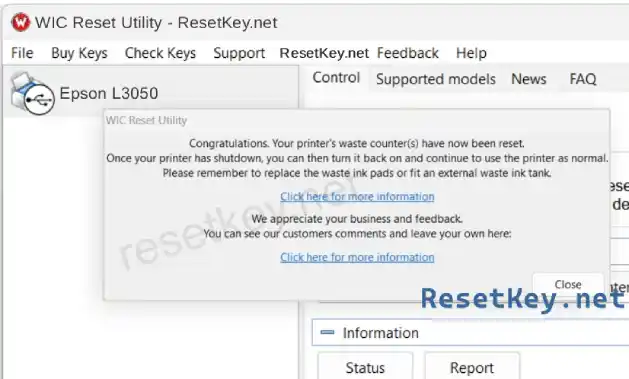
After turn ON the printer, You will receive message:”Congratulations, Your printer waste counter(s) have now been reset”.
Watch video how to reset your Epson L3050 printer with WicReset here:
You need to clean the waste ink tray after resetting the counter to prevent waste ink from overflowing. Here’s how to expand the waste ink tray to prevent ink spillage.
If you have any question, please [Click here] to visit F.A.Q page and also you can contact us
Thank you