💡 Quick Fix & Direct Resolution Snippet
The E-11 error on the Epson L5290 indicates the waste ink pad counter has reached 100%. Printing stops immediately to prevent ink overflow, while scanning, copying to PC, and faxing usually remain functional.
Direct Resolution: Connect the printer via USB cable (Wi-Fi fails with Query is rejected), launch the WIC Reset Utility, click Read waste counters, and enter a Free Trial Reset Key (~80%) or a Full WIC Reset Key (0%) to clear E-11 and resume printing within 2 minutes.
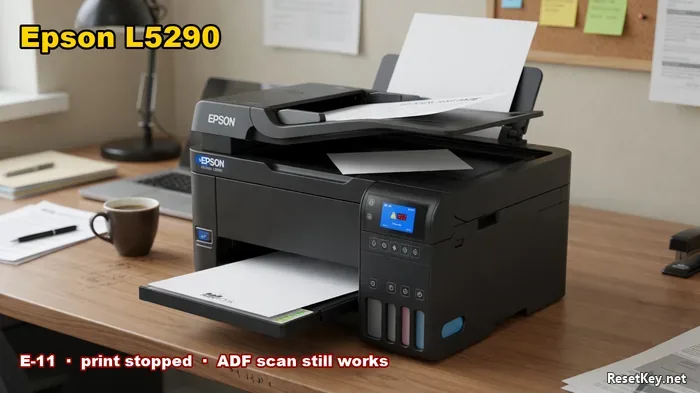
The Epson L5290 is the small-office EcoTank workhorse: 4-in-1 print, scan, copy, fax, 30-page ADF (Auto Document Feeder), Wi-Fi, and a physical Ethernet port. It is fundamentally different from a two-button consumer machine like the L3210.
When its waste ink sponge fills, the 1.44-inch color LCD talks in diagnostic codes. Printing locks down cold, yet the scanner and fax often keep running as if nothing happened. That confusing split behavior makes office workers assume the printhead is fried or send the unit out for costly bench diagnostics. In reality, it is a programmed digital maintenance lockout triggered by the internal EEPROM waste ink counter.
Quick Diagnostic & Compatibility Matrix
| Display / Code | Status Monitor 3 Message | Hardware State | What Still Works | Safe Bench Resolution |
|---|---|---|---|---|
| W-11 | Ink pad is near end of service life | Counter at 95% – 99% | Full operation. Press OK on LCD to continue. | Order a reset key and replacement pad before total lockout. |
| E-11 | A printer’s ink pad is at the end of its service life | Counter reaches ≥ 100% | Printing stops. Scan to PC, ADF scanning, and fax still work. | Run WIC Reset Utility via USB using Trial or Full Key. |
| E-12 | Borderless printing ink pad is full | Borderless platen counter ≥ 100% | Standard bordered prints, scan, copy, and fax work. | Print with margins on, or reset borderless counter via WIC. |
| W-01 | Paper jam | Mechanical obstruction | Scanner works; feed rollers locked. | Clear rear tray or ADF jam. Not a waste pad issue. |
| E-02 | Scanner error | CIS carriage lock or ribbon cable failure | None (all functions halt). | Power cycle. Inspect scanner glass belt travel. |
On your connected computer, Windows will pop up an EPSON Status Monitor 3 alert stating: “A printer’s ink pad is at the end of its service life. Please contact Epson Support.”
Confirm the exact number before buying parts: open WIC Reset, click Read waste counters. If the main pad counter reads 100% or higher, it is strictly the digital counter lockout.
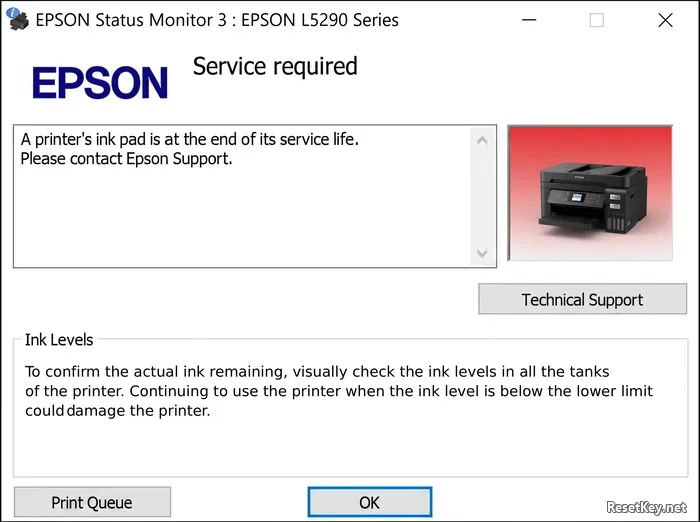
Bench Rule: W-11 is your warning lap. E-11 is the emergency brake. Do not replace the printer or pay a repair shop for a “dead mainboard” when the scanner feeds cleanly and the LCD clearly reads E-11.
Why the L5290 Reaches the Limit Faster Than Home EcoTanks
A standard home L3210 might run 3 years before seeing a service lock. The L5290 hits its waste counter much faster in commercial environments due to duty cycle mechanics:
- 24/7 Power State & Maintenance Cycles: Office L5290 units rarely sleep. Left powered on continuously for incoming faxes, the printer runs scheduled micro-purges at night to keep piezo nozzles from drying.
- Heavy Power Cleaning: After long three-day weekends, staff frequently run “Power Cleaning” through the maintenance menu. A single Power Clean dumps roughly 2% to 3% of total pad capacity directly into the waste sponge box (bench-tested on L-series pump mechanisms).
- ADF Multi-Page Borderless Work: High-volume scanning and borderless document reprographics bleed mist into the platen trough, filling both the main waste box and the borderless sub-pad.
The L5290 shares its chassis and fluid path with the Epson ET-4800 (North American ADF/Ethernet equivalent) and is the direct successor to the L5190 (see our L5190 reset guide here).
Step-by-Step Counter Clearance Protocol (USB Mandatory)
The L5290 features built-in Wi-Fi Direct and Ethernet. However, WIC Reset Utility requires a direct USB connection.
Epson firmware locks EEPROM write commands across network sockets; attempting a reset over wireless will return the infamous Query is rejected error (diagnostic fix explained here).
Step 1: Connect via USB & Launch WIC Reset Utility
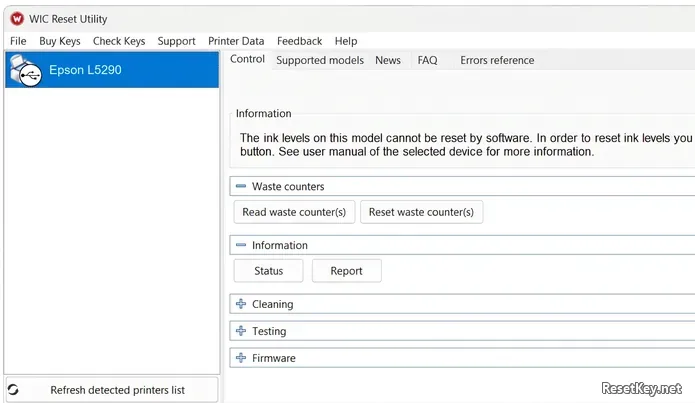
Connect your Epson L5290 directly to your computer using a standard USB A-to-B cable (Wi-Fi and network ports reject EEPROM write commands). Power on the printer, clear any pending jobs in the print spooler, open WIC Reset Utility, and select Epson L5290 from the detected printer list on the left.
Step 2: Read Waste Ink Counters
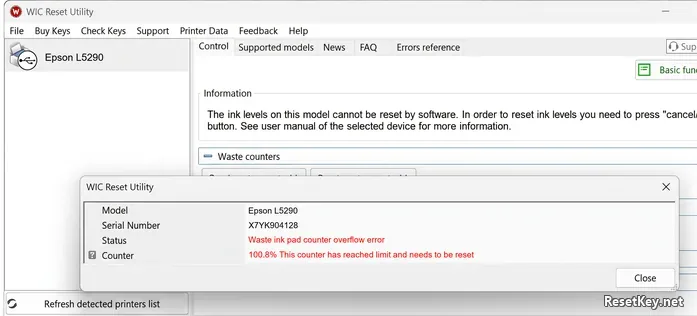
Click the Read waste counter(s) button in the Waste counters panel. The software reads the internal EEPROM registers and displays a dialog confirming the overflow state (typically 100.8% with status “Waste ink pad counter overflow error”).
Step 3: Initiate Counter Reset Command
Click the Reset waste counter(s) button. Ensure that your printer has no pending print jobs in the queue before proceeding.
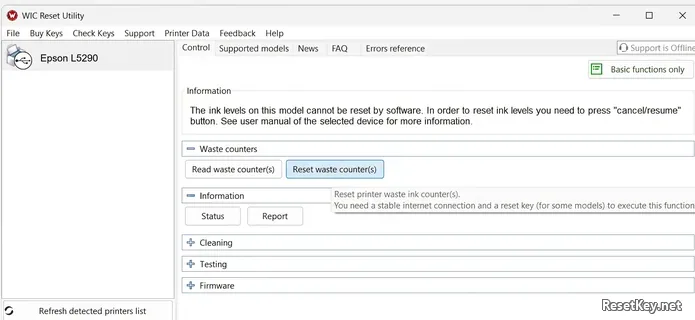
Step 4: Enter WIC Reset Key
A pop-up modal will prompt you to enter your reset key:
- For an emergency test reset back to ~80%, type the universal Free Trial Key (
TRIAL). - For a permanent, full clearance back to 0.00%, enter your official Full WIC Reset Key.
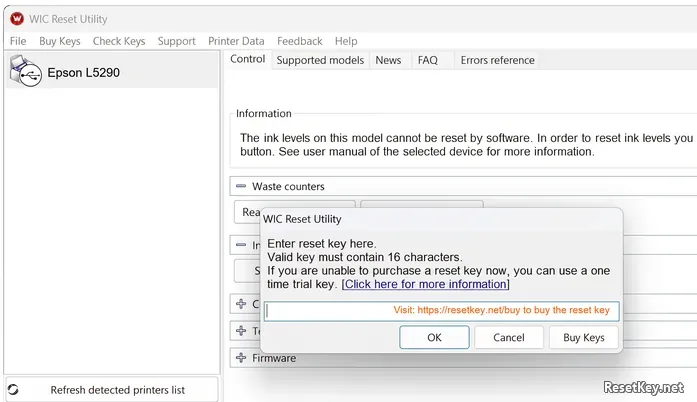
Step 5: Power Off Printer on Command
Once the reset key is validated, the utility flashes the counter memory and displays: “Congratulations. Your printer’s waste counter(s) have now been reset. Once your printer has shutdown, you can then turn it back on and continue to use the printer as normal.” Press the physical power button on the front panel of the Epson L5290 to shut it down.
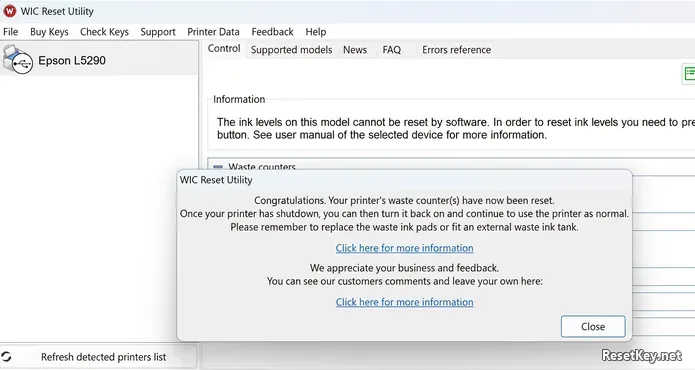
Step 6: Power On & Confirm 0.00% Zero State
Wait 10 seconds until all motors fully stop, then power the Epson L5290 back on. In WIC Reset Utility, click Read waste counter(s) once more to verify that the counter now reads 0.00% (This counter is OK) and status indicates “Printer is ready to print”.
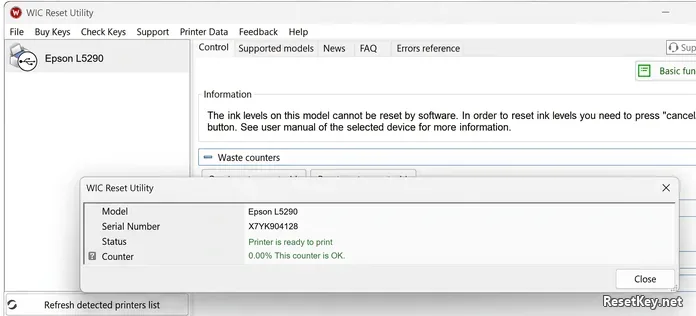
Note: Do not enter random serials or keys copied from video screenshots. Each WIC Reset key is single-use and cryptographically verified against the reset server.
Crucial Hardware Maintenance: Sponge Box Replacement
A software reset resets the digital odometer; it does not vaporize the liquid ink sitting inside the felt pads. If this is your printer’s first reset (around 6,500 – 8,000 pages), the physical sponges usually have enough reserve capacity to absorb ink while you wait for replacement parts. If this is your second reset, the waste box must be physically serviced to avoid ink pooling on your desk.
Bench Technician Replacement Procedure:
- Unplug power and USB cables.
- Look at the rear lower right corner of the printer chassis.
- Remove the single Phillips-head screw holding the outer plastic access cover.
- Slide the cover down to expose the black maintenance cartridge housing.
- Remove the inner screw securing the tray, then slide the tray slightly to the right and pull it straight out.
- Inspect the porous felt stack:
- If the pads are saturated black and spongy to the touch, replace them with a new generic L5290 felt set or compatible ET-4800 maintenance box.
- Bench Tip: Do not attempt to wash and dry these sponges in a sink. Washed felt loses its microscopic capillary density, expands unevenly, and fails to absorb future ink purges, leading to leaks beneath the printer base.
The External Waste Ink Bottle Mod (High-Volume Print Shops)
Offices doing hundreds of daily prints should consider an external tank: disconnect the 3mm ID silicone waste tube from the internal box and route it through the rear casing into an external vented bottle. Empty the bottle whenever ink accumulates, eliminating physical pad saturation forever.
Operating System Edge Cases & Port Conflicts
Windows 11 24H2 Spooler Lockup
If WIC Reset returns “Communication error” or fails to write the EEPROM key:
- Open PowerShell as Administrator and run:
net stop spoolerthennet start spooler. - Disable EPSON Status Monitor 3 background polling in Printing Preferences → Maintenance → Extended Settings.
macOS Sequoia & Sonoma Gatekeeper Bypass
- Download the Mac
.dmgfrom resetkey.net/download. - If macOS blocks execution with “Developer cannot be verified”, go to System Settings → Privacy & Security, scroll to the bottom, and click Open Anyway.
Frequently Asked Questions (FAQ)
Why does WIC Reset show “Query is rejected” on Epson L5290?
Epson firmware deliberately blocks maintenance commands over Wi-Fi and Ethernet network protocols. To reset the counter, you must connect the printer directly to your computer using a standard USB cable and select the USB port in WIC Reset.
Does scanning and faxing still work when E-11 error appears?
Yes. The E-11 code only halts printhead carriage movement and paper feed rollers to prevent ink overflow. The scanner flatbed, Automatic Document Feeder (ADF), copy-to-PC function, and incoming fax storage remain functional.
How many pages will an Epson L5290 print before the ink pad fills?
Under normal office printing, the L5290 waste pad counter reaches 100% after approximately 6,500 to 8,500 pages. However, running frequent “Power Cleaning” cycles can fill the counter in fewer pages, as each deep clean accounts for roughly 2% on the counter.
Can I clear the L5290 waste counter without buying a key?
Yes. You can test your connection using the universal Trial Reset Key (TRIAL). This resets the waste counter to approximately 80%, allowing you to print urgent documents immediately. To reset the counter to 0% permanently, a Full WIC Reset Key is required.
Download WIC Reset Utility for free, or Get an Official WIC Reset Key to clear the E-11 service lockout in 2 minutes.