
Did my Epson L380 printer suddenly stop working even though it was functioning fine before? The red light is blinking. Your screen shows “Service Required – A printer’s ink pad is at the end of its service life. Please contact Epson Support.”
You didn’t break anything — this is a built-in software limit, and you can fix it yourself in under 10 minutes without going to a service center.
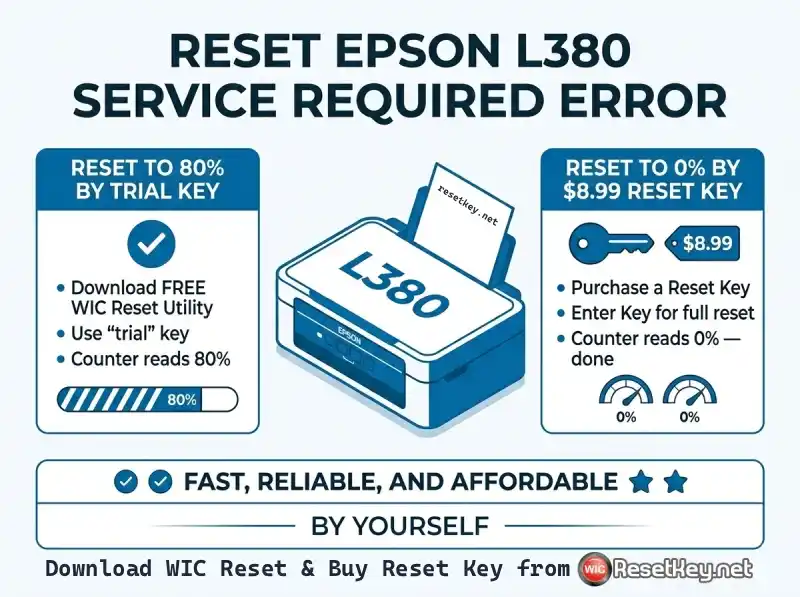
This guide explains exactly what the Waste Ink Counter is, how to confirm it has overflowed, and how to reset it using the Epson L380 Resetter (WIC Reset Utility).
What Is the Epson L380 Waste Ink Counter — and Why Does It Overflow?
Every Epson inkjet printer, including the L380, contains a set of sponge pads called Waste Ink Pads. During printing, borderless photo printing, and automatic printhead cleaning cycles, ink that isn’t used ends up in these pads rather than on paper.
The Waste Ink Counter is an internal software counter that tracks how full those pads are — expressed as a percentage from 0% to 100%.
When the counter hits 100%, the printer locks itself and refuses to print.
This is a deliberate design choice by Epson to prevent ink from overflowing onto the printer’s internal components.
The counter reaching 100% does not mean your printer is broken. It means the software limit has been reached and needs to be reset.
How to Recognize the “Service Required” Error on Epson L380
Before spending time or money on a reset, confirm that waste ink counter overflow is the actual cause. The Epson L380 shows a combination of these symptoms when the counter is full:
3 Clear Signs Your Waste Ink Counter Has Overflowed
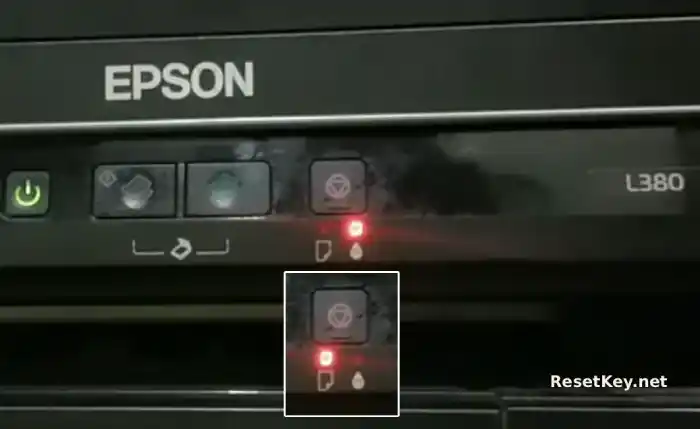
1. The printer stops working & Red light blinking continuously
The Epson L380 printer stopped working suddenly. The red indicator light on the printer flashes without stopping — even when no print job is running.
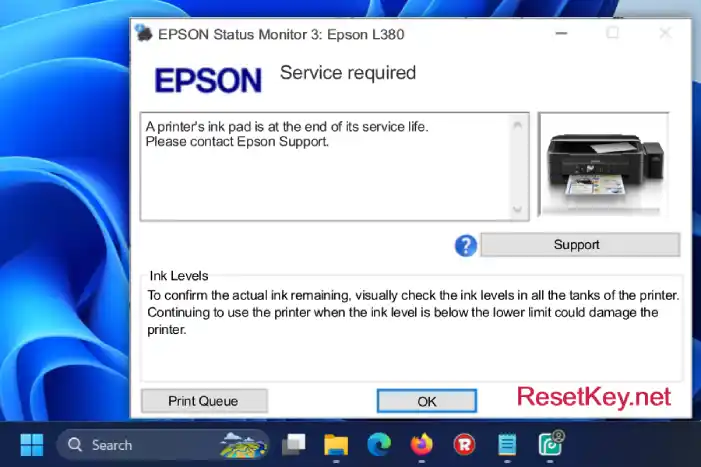
2. Error message on your computer screen
Open Epson Status Monitor 3 on your computer. If you see a “Service Required – A printer’s ink pad is at the end of its service life. Please contact Epson Support.” message, the waste ink counter is almost certainly the cause.
3. Counter reads 100% or above in WIC Reset Tool
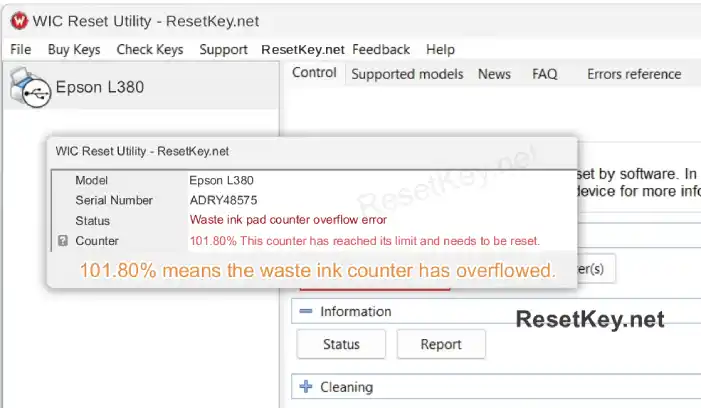
Download the free WIC Reset Utility, connect your printer via USB, and click “Read Waste Counters“. If any counter shows 100% or more, the overflow is confirmed.
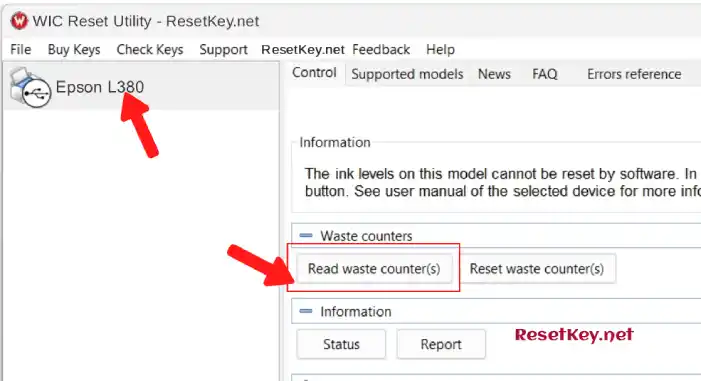
In the case of this printer. The screenshot below shows a real counter reading of 101.8% — that printer is locked and needs a reset.
How to Reset the Epson L380 Waste Ink Counter
The tool for this job is the WIC Reset Utility — also referred to as the Epson L380 Resetter. It is available for both Windows and Mac, and the reset process takes about 5 minutes.
Step 1 — Download the WIC Reset Utility (Free)
Download the correct version for your operating system:
Windows: Download WICReset Utility for Windows
Mac OS X: Download iWIC Utility for Mac
Mirror / All versions: resetkey.net/download
Install the utility after downloading. No advanced setup is required.
Step 2 — Prepare the environment before resetting.
– Connect Your Epson L380 via good USB cable: The WIC Reset Tool needs a direct USB connection to communicate with the printer’s internal memory.
Once connected, your Epson L380 will appear in the left panel of the WIC Reset Tool interface.
– Disable Epson Status Monitor 3 – This is how
– Disable/Close all programs that are using the Epson L380 printer.
– Turn off all other unrelated printers.
– Install the Epson L380 printer driver (Download from Epson.com) if you haven’t already.
Step 3 — Purchase a Reset Key
To perform the actual reset, you need a one-time Reset Key. This key is consumed after a single use and resets all waste counters back to 0%.
Reset Key price: $8.99
👉 Buy your Epson L380 Reset Key here → resetkey.net/buy
After purchase, your key is delivered digitally and can be used immediately.
Step 4 — Enter the Reset Key and Execute the Reset
In the WIC Reset Tool, click “Reset Waste Counters” and enter the reset key you purchased when prompted, then click OK.
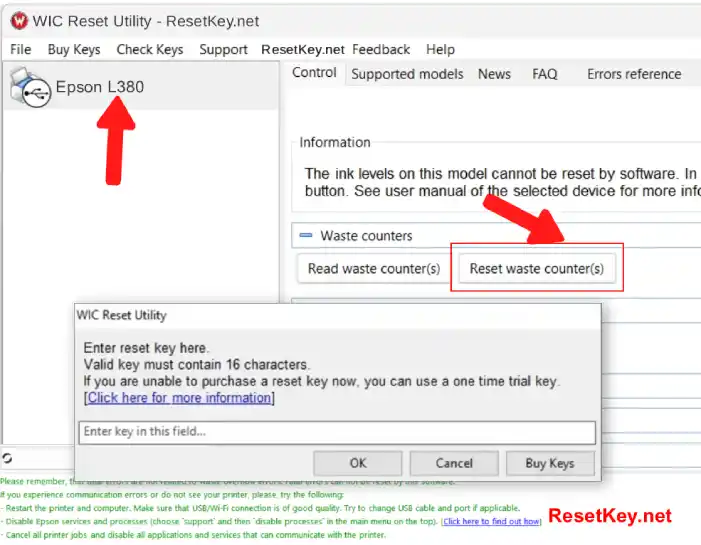
The utility will process the reset for a few seconds.
Step 5 — Turn the Printer Off, Then Back On
When the tool displays “Please, turn printer OFF now“, switch your Epson L380 off immediately (Using Power button).
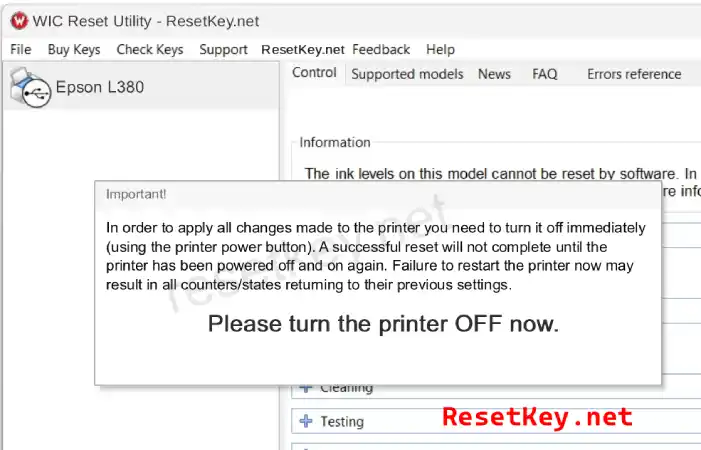
Wait 10 seconds, then turn the printer back on. You will see the confirmation message: “Congratulations, Your printer waste counter(s) have now been reset.“
Step 6 — Verify the Reset Was Successful
Click “Read Waste Counters” one more time. All counters should now show 0%, and your Epson L380 is ready to print normally.
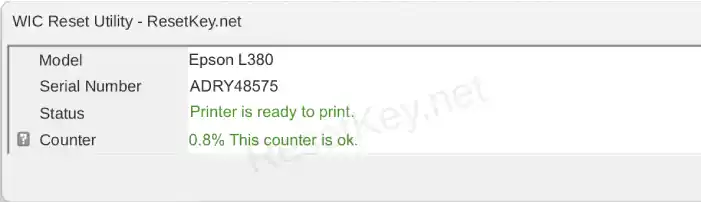
The “Service Required” error will be gone and the red blinking light will stop.
Do a test print to make sure the print command goes through.
Watch the step-by-step video tutorial (Recommended)
To help you visualize and execute the process accurately, here’s a detailed video tutorial on how to use the WIC Reset Utility software on your computer to reset your Epson L380 printer. The video clearly demonstrates the software interface, the sequence of steps, and important notes when entering the Reset Key.
Duration: approximately 1 minutes. We recommend watching it in full before proceeding with the reset to avoid errors.
After watching the video, you’ve got the process down. Go ahead and download the software and check your Waste Ink Counter now.
Is It Safe to Reset the Waste Ink Counter Yourself?
Yes. The reset is a software-only operation — you are changing a counter value in the printer’s internal memory, not modifying any hardware.
The WIC Reset Utility is used by technicians and home users worldwide and works directly with the printer’s firmware in the same way Epson’s own service tools do.
The physical waste ink pads inside your printer will continue to absorb ink after the reset.
If you have printed an extremely high volume over many years, physically replacing the pads is an option, but most users still printed some pages after resetting the counter without any issues.
However, we recommend that you check and clean the waste ink tray as soon as possible.
Frequently Asked Questions
Will a free trial key fix my Epson L380?
A free trial key (available via the WIC Reset Tool’s trial option) resets the counter to 80%, not 0% (Read more).
Your printer will resume working, but you will hit the limit again sooner.
The full paid key at $8.99 resets to 0% for the longest interval before the next reset is needed.
My printer still shows an error after resetting. What do I do?
– Make sure you restart your printer when the WIC Reset Utility asks you to.
– Check if the waste ink counter has been reset.
– Restart both your computer and the printer after the reset completes. If the issue persists, visit resetkey.net/faq or contact support.
Does this work on Windows 11 and macOS Ventura / Sonoma?
Yes. The WIC Reset Utility is regularly updated and supports current versions of Windows (10/11) and macOS.
Is the Reset Key a subscription or one-time use?
It is a one-time use key, each reset key can be used for an Epson L380 printer, or another supported printer, and can only be used once.
Each time the counter needs resetting, a new key is required.
Situations that cause ink counter overflow:
1. After running Head Cleaning: The printer pumps a lot of ink to clean, and the counter jumps up; if it goes over the limit, it’ll throw an error right away.
2. When you turn the printer on: The startup maintenance cycle makes the counter hit 100% (if it’s already almost full), then the printer stops and won’t do anything.
3. While printing: The counter reaches its limit mid-print, causing the printer to stop. This could lead to paper jams or blank pages.
4. After Power Ink Flushing: A strong ink flush makes the counter increase quickly (10–20%), which can easily cause the counter to overflow.
5. After clearing a paper jam: The printer pumps a little ink to reset, which can make the counter go over the limit.
Summary
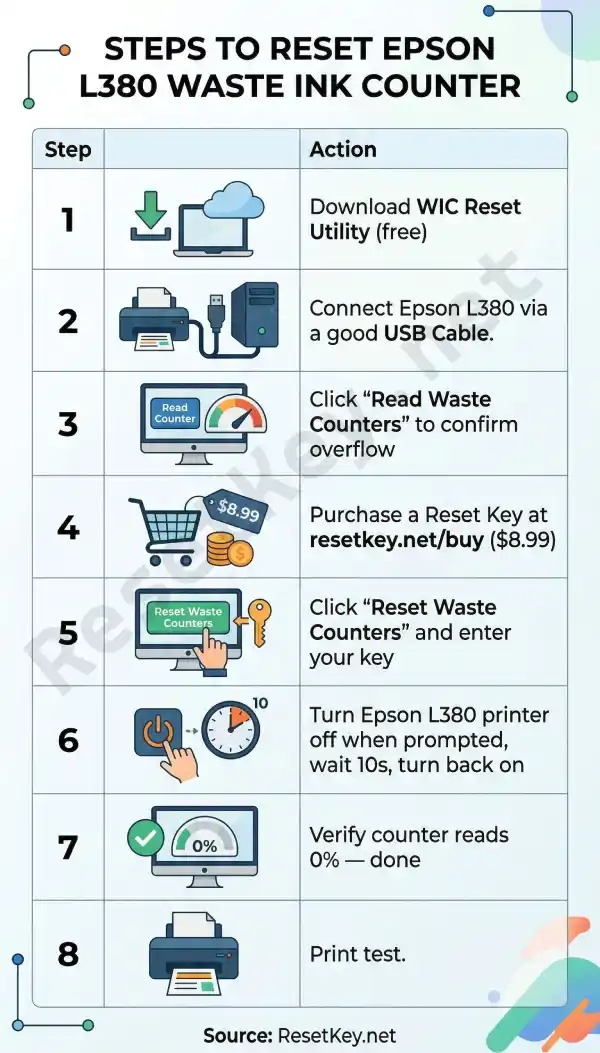
| Step | Action |
|---|---|
| 1 | Download WIC Reset Utility (free) |
| 2 | Connect Epson L380 via USB |
| 3 | Click “Read Waste Counters” to confirm overflow |
| 4 | Purchase a Reset Key at resetkey.net/buy ($8.99) |
| 5 | Click “Reset Waste Counters” and enter your key |
| 6 | Turn printer off when prompted, wait 10s, turn back on |
| 7 | Verify counter reads 0% — done |
| 8 | Print test. |
The entire process costs a fraction of a service center visit and takes less time than driving there. Your Epson L380 is not broken — the waste ink counter just needs a reset.