Has your Epson L1800 printer suddenly stopped working, with the ink and paper lights flashing alternately for no apparent reason?
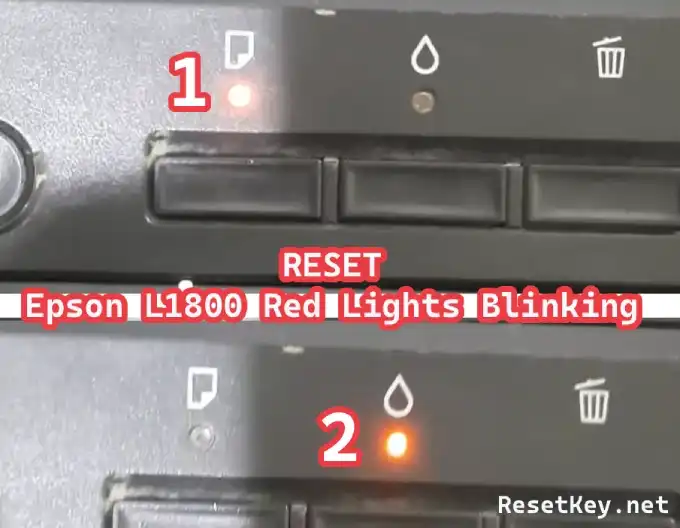
Or, when you send a print command or open “Epson Status Monitor 3” (accessed via “Epson L1800 Printing Preferences > Maintenance tab“), does the screen display an error message like this:
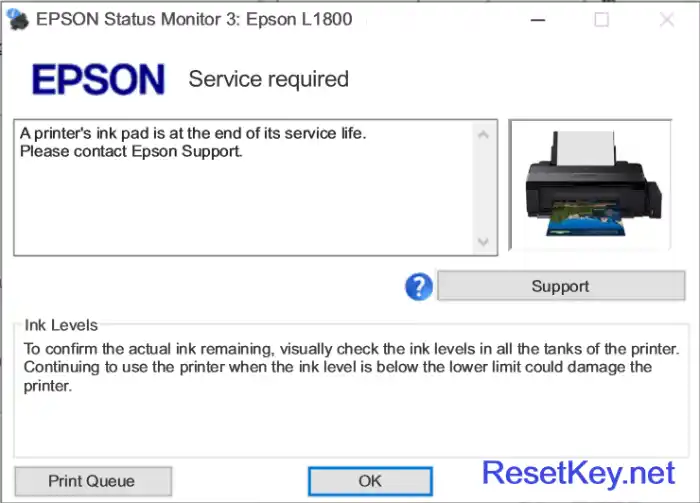
If you’re experiencing this exact situation, don’t panic! This is an “extremely common” error on the Epson L1800 series – also known as the “waste ink pad counter overflow error“. This is a proactive protection mechanism by Epson to prevent waste ink from overflowing inside the machine, and it’s “completely fixable at home in just a few minutes“.
Cause: Waste Ink Pad Counter Overflow Error on Epson L1800
The Epson L1800 printer, like all Epson inkjet printers, is equipped with a component called the “Waste Ink Pad” (consisting of absorbent pads) – a place where excess ink from each print head cleaning cycle is stored, helping to maintain stable print quality over time.
To control the amount of accumulated waste ink, Epson integrates a software mechanism called the “Waste Ink Counter“, which works on the principle:
– After each print head cleaning cycle, the counter “automatically increases by 2% to 3%” depending on the level and type of cleaning performed.
– When the counter reaches “≥ 100%“, the printer will “completely lock up” and trigger error warnings as described above.
This is Epson’s protection mechanism to prevent waste ink from spilling onto the circuit board and internal components, avoiding serious damage.
Download Epson L1800 Resetter: Check and Reset the Waste Ink Counter
The most popular and effective solution to fix this error is to use the “Epson L1800 Resetter” software — also known as “WIC Reset Utility“, a specialized tool that allows you to:
1. “Accurately check” the current waste ink counter level (Main Pad Counter & Platen Pad Counter).
2. “Reset the counter to 0%“, helping the printer recognize a normal state and resume operation.
3. And many other technical support functions.
Step 1: Download Epson L1800 Resetter
– 🖥️ Download for Windows: Download here
Filename: wicreset.zip
– 🍎 Download for macOS: Download here
Filename: iWIC.zip
Check for alternative download links and other versions here: Visit Download Page
⚠️ Important notes before running the software:
– After installation, “Disable Epson Status Monitor 3” for your Epson L1800 printer instructions here to avoid conflicts.
– “Close all” applications using the printer before proceeding with the reset.
Step 2: Get Reset Key
The WIC Reset Utility requires a “reset key” to perform the reset operation.
– 🆓 Free reset key — resets the counter to “80%“: Get it here
– 💳 Full reset key — resets the counter to “0%“: Buy it here — Price “$9.75 / key“
Step 3: Check the Waste Ink Counter
This step helps to accurately confirm that your Epson L1800 printer is experiencing a waste ink counter overflow error, and not some other fatal error.
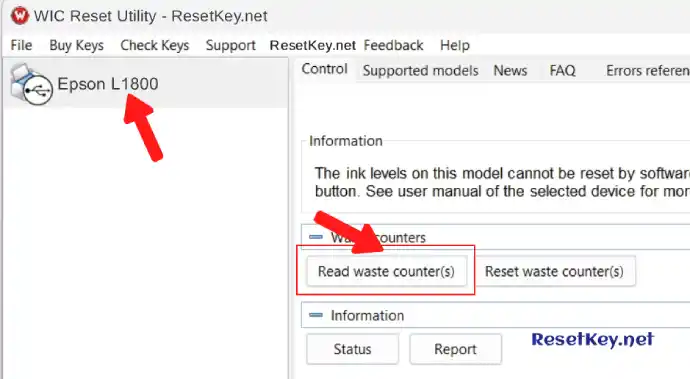
Open “WIC Reset Utility“, select the “Epson L1800” printer from the list, then click the “Read waste counter(s)” button.
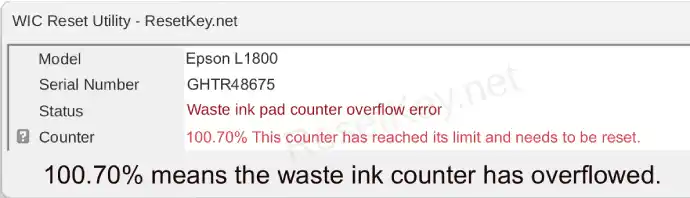
If the result shows “≥ 100%” (e.g., 100.70% as shown below), you need to reset it immediately.
Step 4: Reset the Waste Ink Counter
Step-by-step instructions with images to reset the waste ink counter on the Epson L1800:
1. Click the “Reset waste counter(s)” button in the WIC Reset interface.
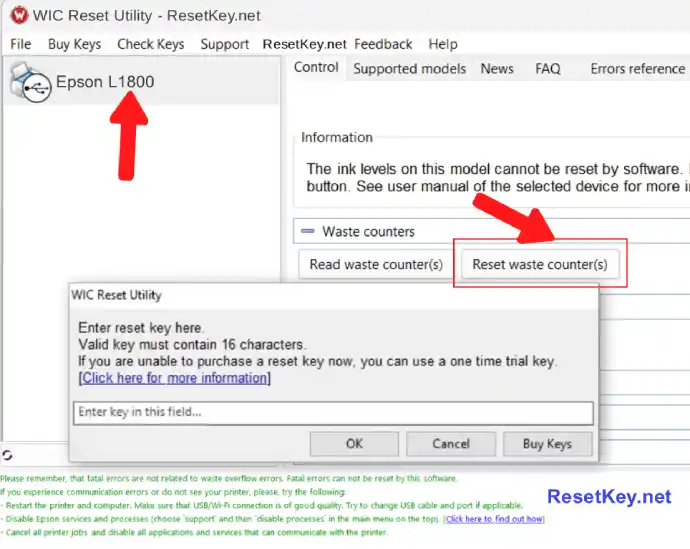
2. Enter the “reset key” when prompted, then click “OK” to confirm.
3.” When the WIC Reset asks you to Turn Off the printer: press the power button” on the Epson L1800 to turn it off, “wait 5 seconds“, then turn it back on.
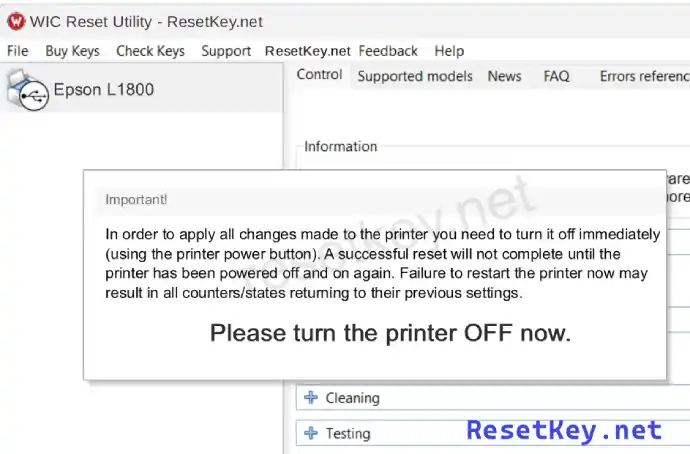
4. If the reset is successful, the software will display a “Congratulations!” message.
Step 5: Confirm Successful Reset
After resetting, verify the results with the following steps:
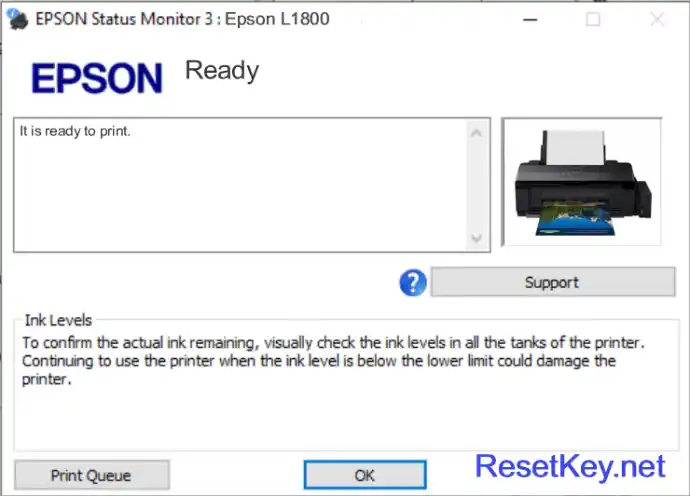
1. Turn Epson Status Monitor 3: Epson L1800 back on and check the printer status — no more error warnings means success.
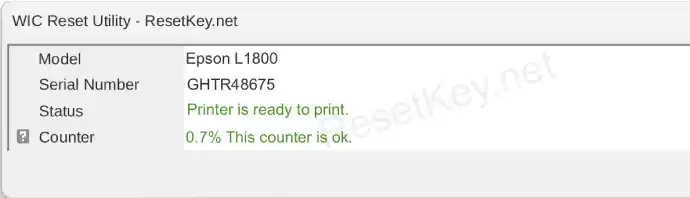
2. Read the waste ink counter again in WIC Reset to confirm the value has returned to 0%.
3. Print a test page to check that the printer is working normally.
Important Notes After Resetting
Based on my practical experience: if this is the “first time” you’ve reset the waste ink counter on your Epson L1800, the physical ink pads are usually not at the point of needing immediate replacement. However, you should still:
– “Visually inspect” the waste ink absorber pads in the Epson L1800 printer.
– If the pads are saturated or at risk of overflowing, “clean or replace” them before continuing to use the printer.
Resetting the counter while ignoring the physical condition of the pads can lead to a real ink overflow later, damaging the printer’s circuit board.
Good luck! If you encounter any problems during the process, don’t hesitate to contact us via email: “resetkey.net@gmail.com“