If your Epson L850 printer shows error message “The Printer’s Ink Pads at the end of Their service life” and your Epson L850 printer has red light blinking problem: You should be download and reset your Epson L850 printer Waste Ink Pads Counter with WIC Reset Utility Tool (how to reset)
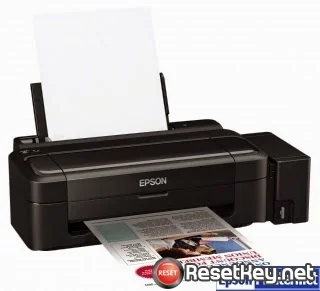
Epson L850 printer Waste Ink Pads Counter overflow error and solution
Epson L850 printer and every Epson Printers have an internal Waste Ink Pads to collect the wasted ink during the process of cleaning and printing. When this ink pads reaches its limitation, your Epson L850 will send you Warning message and refuse to function.
What is Epson L850 printer Waste Ink Pads Counter Overflow problem
Waste Ink Pads are a number of sponge pads inside your printer which is responsible for absorbing, collecting, accommodating unused ink during the printing, cleaning the printhead. Once these Waste Ink Pads is overflow, your printer will stop working automatically.
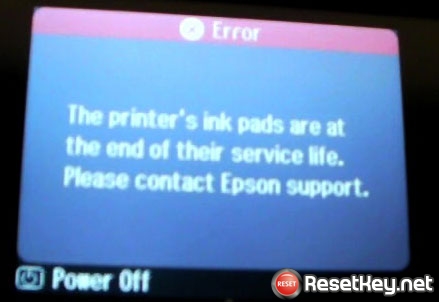
1. The printer has stopped working, and the LCD screen displays the following message:: “Service Required – The Printer’s Ink Pads at the end of Their service life. Please contact Epson Support”.
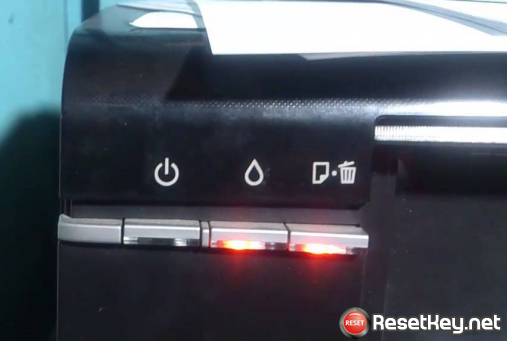
2. The printer’s red light blinking error
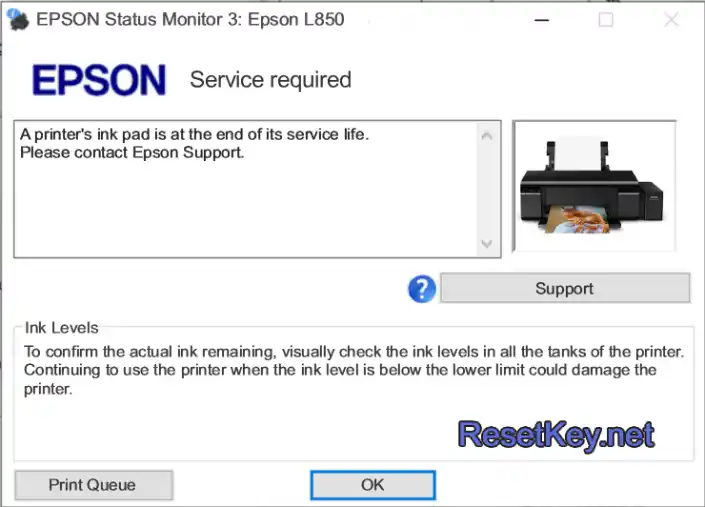
3. Computer show error message “A printer’s ink pad is at the end of its service life. Please contact Epson Support”
WIC Rest Utility Tool can fix your printer
Step 1: Free Download WIC Reset Utility Tools
We have both version for Windows and Mac OS X. You can download WIC Reset Utility in [Download Page] and also by direct link below:
[Download WIC Reset Utility for Windows]
[Download WIC Reset Utility for MAC OS X]
Read detail about WIC Reset Utility Tool here
Step 2: Check Epson L850 printer’s waste ink counter:
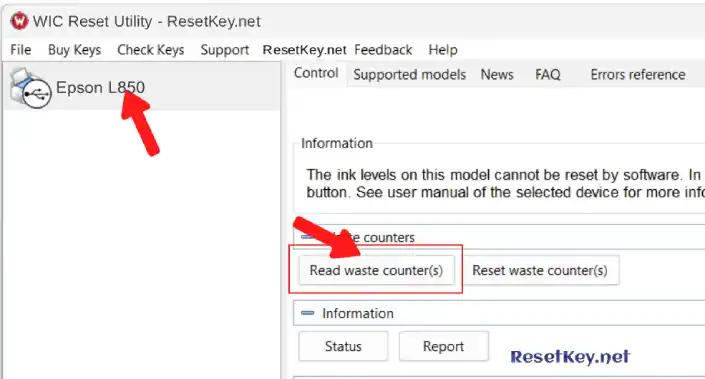
Run the WIC Reset Utility tool, select Epson L850 from the list and click “Read waste counter(s)”:
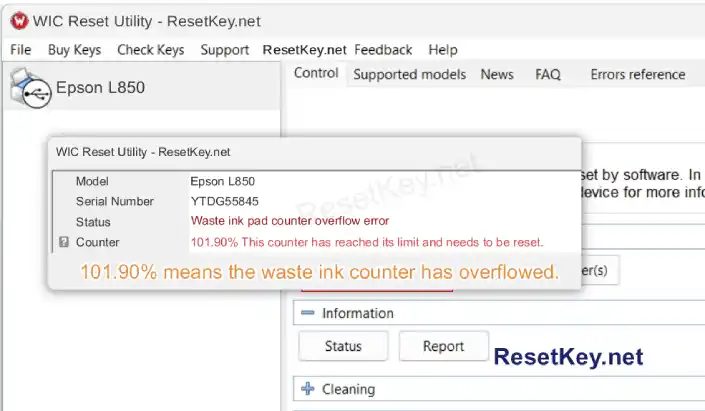
If any of the counters >= 100%, it means your Epson L850 printer’s waste ink pad counter is full. Resetting this counter to 0% will immediately restore the printer’s operation.
Reset Epson L850 printer by WIC Utility tool is very simple. You can reset your Epson L850 printer by Yourself
Step 3: Get WIC Reset Key
The One Time RESET KEY is required for RESET FUNCTION when you are using the WIC Reset utility to reset Epson L850 printer.

Step 4: Click “Reset waste counter(s)” to start reset your Epson L850 printer’s waste ink counter
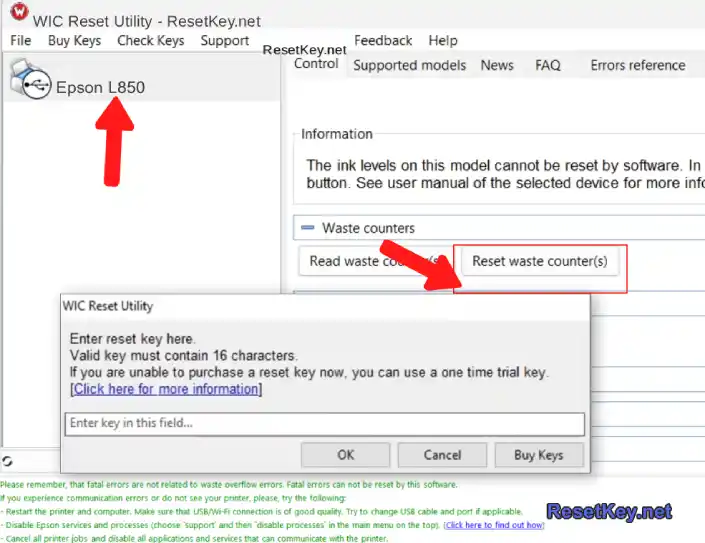
Enter the reset key you purchased, or if you’re using a trial key, click OK to begin the reset process.
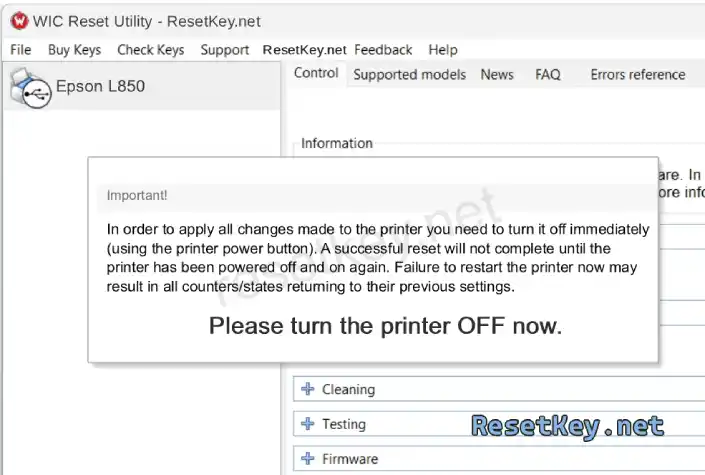
When the following message appears, use the printer’s power button to turn the printer off, and then turn it back on after 10-20 seconds.
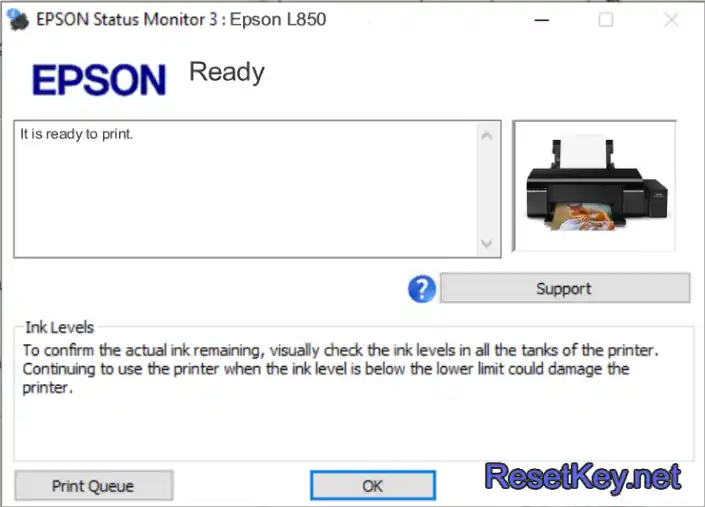
After a successful reset, you will receive a congratulatory message. At this point, check Epson Status Monitor 3 to confirm that the printer status shows it is ready to work:
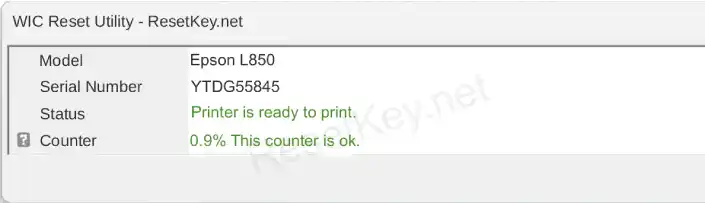
Checking the waste ink counter will show that it has been reset successfully.
+ Watch video how to reset your Epson L850 printer with WicReset Tools here
+ Read how to reset Epson L850 printer with WicReset Tool by pictures here
If you have any question, please [Click here] to visit F.A.Q page and also you can contact us here
Good luck!