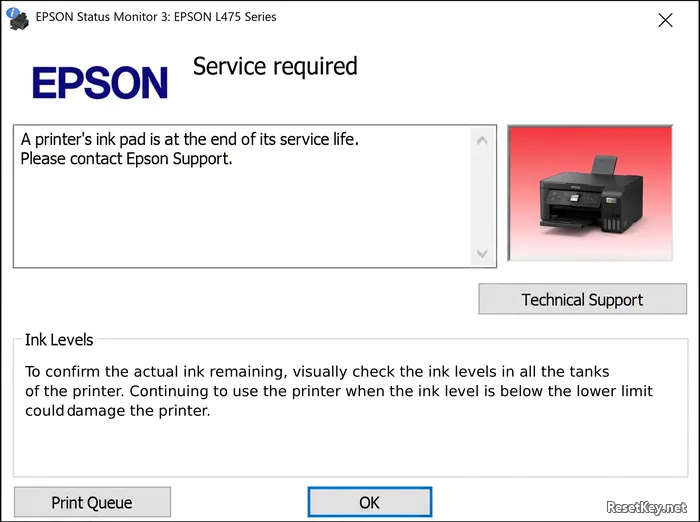
💡 Direct Fix: Epson L475 Error E-11 (“A printer’s ink pad is at the end of its service life”) means the waste ink counter hit 100%. Plug in a USB 2.0 cable (Wi-Fi fails with Query is rejected), open WIC Reset Utility with a Reset Key, and clear the flashing lights in 2 minutes.
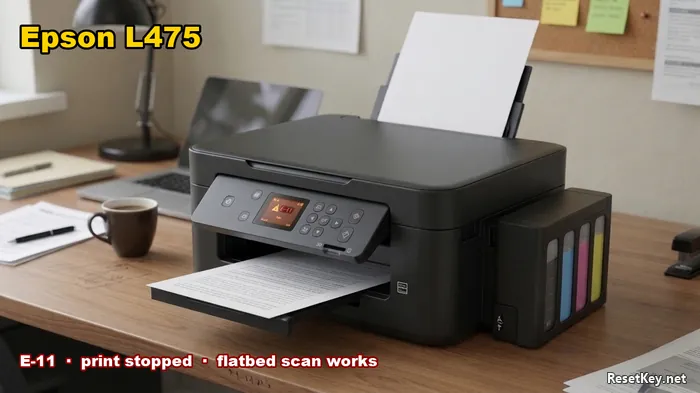
Your Epson L475 stops mid-job. Both red ink and paper indicator lights begin blinking together, the small tilted 1.44-inch color LCD freezes on E-11, and Windows pops up an alert saying “The Printer’s Ink Pads at the end of Their service life” (or “A printer’s ink pad is at the end of its service life”). Most owners assume a part inside broke, so they unplug everything and look up repair shops.
Before taking the printer anywhere, notice what still works on the chassis. You can lift the flatbed scanner lid (there is no ADF) and scan a document to your PC, and a memory card pushed into the front SD card slot next to the 4-color T664 ink tanks will still load thumbnails on the LCD. When scanning works while printing is blocked, your mainboard and printhead are fine. Only the internal EEPROM counter reached 100%, triggering the reset flashing lights error condition.
Epson L475 Adjustment Program (AdjProg.exe) vs. WIC Reset Utility
If you searched for an Epson L475 Adjustment Program, you probably ran across shared L375_L475.rar or AdjProg.exe downloads on forums and file lockers. On a technical level, an Adjustment Program and WIC Reset Utility write to the exact same waste ink counter register on the L475 logic board. The difference comes down to security, Windows 11 compatibility, and avoiding accidental NVRAM wipes.
| What Matters on the Bench | WIC Reset Utility / iWIC | Cracked L375/L475 AdjProg.exe (.rar) | Shop Notes |
|---|---|---|---|
| Operating Systems | Windows 7/10/11 (incl. 24H2) and macOS (iWIC) | Windows only (often crashes or demands PC clock rollback) | No virtual machine needed if you print from a Mac. |
| Antivirus & Clean Install | Digitally verified installer, runs with Defender active | Frequently flagged for trojans or password keygen loaders | You never have to turn off Windows Security. |
| Urgent Test / Free Run | Built-in TRIAL key resets once to ~80% |
No verified trial option | Handy for confirming USB works or finishing an urgent invoice. |
| EEPROM Safety | Only reads/writes the waste ink pad counter | Exposes head ID, MAC address, and NVRAM clear buttons | One stray click in AdjProg can blank your printhead ID. |
When Windows shows EPSON Status Monitor 3 with Service required for EPSON L475 Series, close that status window and check the counter directly in WIC Reset over USB first.
How to Reset Epson L475 Waste Ink Counter via USB (7 Steps)
Grab a standard USB 2.0 A-to-B printer cable before you start. Even though the L475 connects over Wi-Fi for normal printing, Epson’s firmware blocks EEPROM counter resets over wireless networks and throws Query is rejected. Download the Windows tool (wicreset.zip) or macOS version (iWIC.zip) from our Download Page and make sure the computer is online.
Step 1: Plug in via USB & Select Epson L475
Cancel any stuck documents in the Windows or Mac print queue and unplug other USB printers so nothing conflicts. Connect the Epson L475 straight to a USB port on your computer (skip unpowered USB hubs), open WIC Reset Utility, and highlight Epson L475 with the USB icon in the left device list.
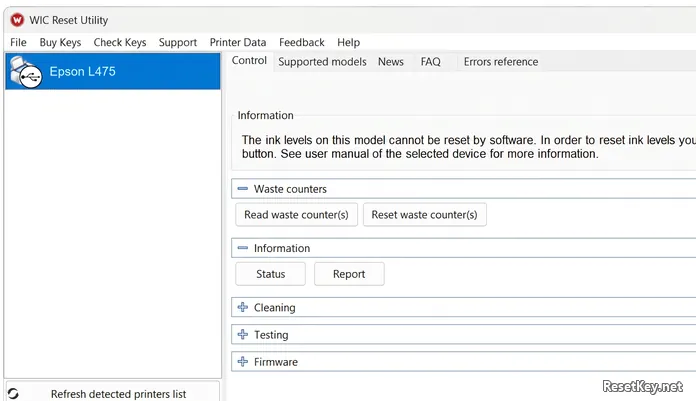
Step 2: Read Waste Ink Counters
Click Read waste counter(s) to pull the live numbers from the printer’s EEPROM. Expect to see your unit serial number alongside a figure above 100% and the line “Waste ink pad counter overflow error”.
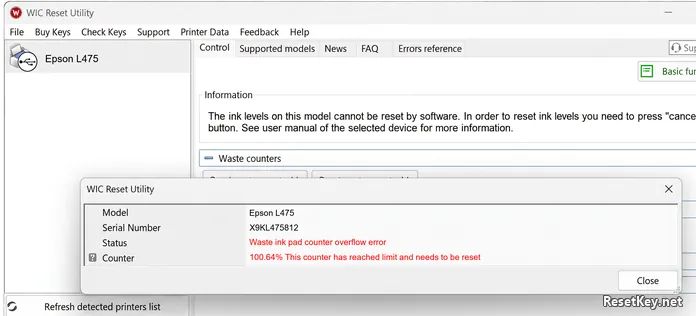
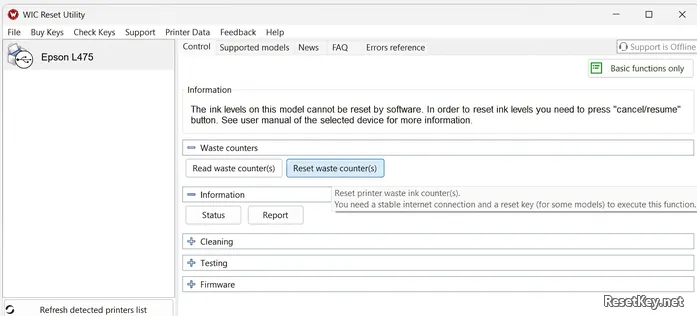
Step 3: Click Reset Waste Counter(s)
Close the counter readout window and click Reset waste counter(s) right beside the Read button. Leave the USB cord untouched while the utility prepares the write command.
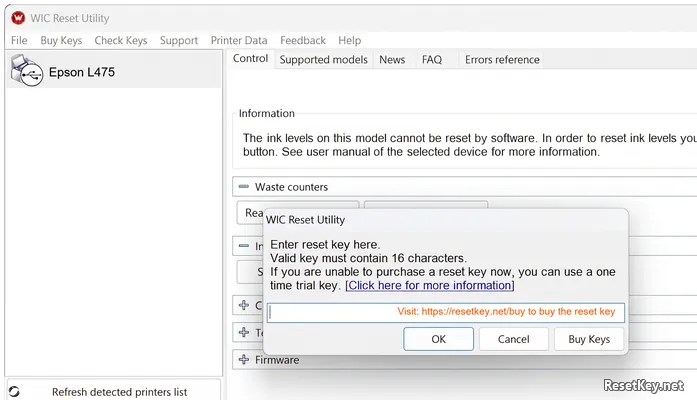
Step 4: Enter Your WIC Reset Key (Trial or Full)
Paste your 16-character Full WIC Reset Key to zero the counter completely to 0.00%, or type TRIAL from the Free Trial Reset Key page for a one-time ~80% emergency unlock. Press OK once typed.
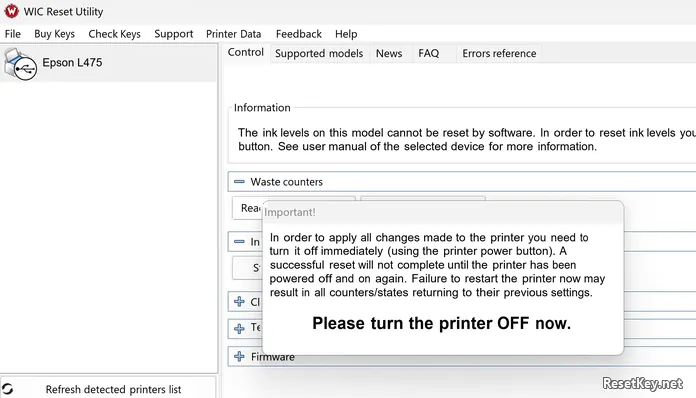
Step 5: Turn Off Epson L475 Immediately When Prompted
Right after you click OK, WIC Reset flashes the new counter into buffer memory and pops up an Important! warning box: “In order to apply all changes made to the printer you need to turn it off immediately (using the printer power button)… Please turn the printer OFF now.” Press the physical Power button on the front panel right away (do not yank the power cord). Skipping this power-off leaves the old overflow value stuck in EEPROM.
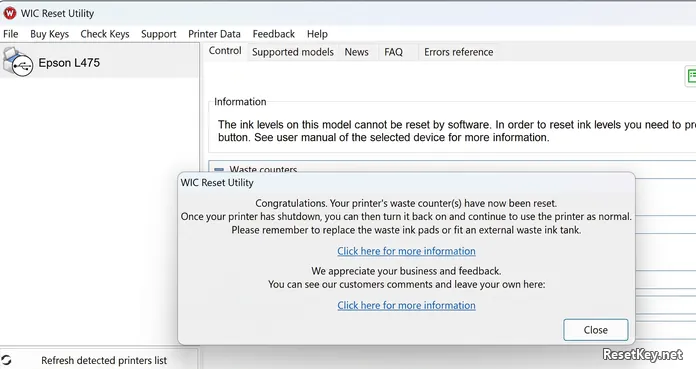
Step 6: Close the Completion Dialog
Once the L475 finishes shutting down completely, the software switches to the confirmation box: “Congratulations. Your printer’s waste counter(s) have now been reset. Once your printer has shutdown, you can then turn it back on and continue to use the printer as normal.” Click Close.
Step 7: Power Back On & Verify 0.00% Ready Status
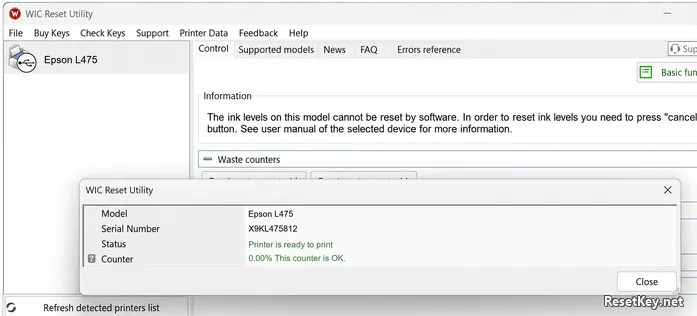
Give the rollers 10 seconds to stay silent, then turn the Epson L475 back on. The red blinking lights stop and E-11 clears from the 1.44-inch screen. Click Read waste counter(s) one final time to confirm 0.00% (This counter is OK) and “Printer is ready to print”.
Key Caution: Sample keys shown in screenshots or videos cannot be reused. Every Full WIC Reset Key is single-use and ties to one reset operation online.
Epson L475 1.44-Inch LCD Error Codes: What WIC Reset Can (and Cannot) Fix
Not every red light blinking error on the L475 comes from the waste counter. Always match the exact code on your 1.44-inch color display against the table below before spending money on a reset key.
| LCD Code / Alert | Status Monitor 3 Message | Hardware State | What Still Works | Bench Fix |
|---|---|---|---|---|
| W-11 | Ink pad is nearing the end of its service life | Counter at 80% to 99% | Printing works after pressing OK on panel | Prepare a WIC Reset Key and inspect the rear porous pads soon. |
| E-11 | A printer’s ink pad is at the end of its service life | Counter reached 100% or higher | Printing stops. Flatbed scan-to-PC and SD card preview still run | Clear counter via USB using WIC Reset (Trial 80% or Full 0%). |
| E-01 / 0xF1 / 0xEA / 0x9E | Paper jam or Fatal Error | Carriage encoder strip, PF roller, or CR motor obstruction | Printhead carriage stalls during startup | Clear jammed scraps and wipe the clear encoder ribbon. Software resets cannot fix these. |
| E-10 / 0x10 | Scanner error | Flatbed CIS sensor bar or ribbon cable fault | Scanner light bar fails home calibration | Power cycle and check flatbed rail/ribbon; unrelated to waste ink pads. |
| Query is rejected | WIC Reset cannot read or reset | Printer picked over Wi-Fi or Wi-Fi Direct | Normal wireless printing works (when unlocked) | Plug in a direct USB A-to-B cable and select the USB printer. |
Bench Rule: Only W-11 and E-11 are ink pad counter errors. If your L475 LCD shows E-01, 0xF1, 0xEA, or 0x10, fix the paper path, encoder strip, or scanner carriage before buying any key.
Why the L475 Waste Pad Fills Up & How to Access the Rear Porous Pad Box
The Epson L475 uses the same four-color EcoTank ink system (T6641 Black, T6642 Cyan, T6643 Magenta, T6644 Yellow) found on the L375 and L575, yet home and photo users often hit E-11 sooner than the raw page count suggests. Right out of the box, initial ink charging pulls ink through the side supply lines and burns roughly 8% to 10% of the counter before your first document ever prints. On top of that, anyone printing borderless 4×6 or A4 snapshots directly from a camera card in the front SD slot puts extra ink mist into the platen sponges on every pass. Finally, leaving the printer idle for two or three weeks dries out T664 nozzles; running back-to-back Power Cleaning cycles from the LCD menu flushes roughly 2% to 3% of total pad allowance into the waste tray per run.
Resetting the counter unblocks the printer logic immediately, though it obviously does not empty liquid ink already sitting in the absorbent felt pads (often called porous pads or almohadillas). On a first reset (typically 6,000 to 7,500 pages), the sponge stack usually still has spare dry layers underneath. By the time E-11 shows up a second time, pull the rear pad box and inspect it so ink never seeps onto your desk.
Accessing & Replacing the L475 Waste Pad Tray:
- Shut down the printer and unplug both AC power and USB cables.
- Look at the rear lower-right corner of the L475 frame, directly underneath the external four-tank housing.
- Undo the single Phillips screw holding the rear service door and slide the plastic cover away.
- Remove the retaining screw holding the black waste pad tray and slide the box straight out while keeping it level.
- Check how wet the top felt sheets feel. If they are shiny and saturated across the top, drop in a fresh L375/L475 compatible porous pad kit and screw the box back in.
One rule technicians learn the hard way: never rinse used Epson waste sponges under tap water and dry them in the sun. Washing collapses the compressed felt fibers and wrecks capillary absorption, so liquid ink pools at the bottom seam and leaks straight through the bottom case during your next head clean. For print shops running heavy daily volume, it is cleaner to pop the 3mm silicone waste hose off the rear-right tray nipple, run it through the back cutout into a vented plastic bottle behind the printer, and forget about internal sponges altogether.
Fixing “Query is Rejected” & USB Port Locks on Windows 11 and macOS
Even with a USB cable attached, Windows 11 and recent macOS builds can block WIC Reset from reading the L475 EEPROM. Check these two quick fixes if your reading stalls or times out.
Windows 11 24H2 Spooler & Status Monitor Locks
EPSON Status Monitor 3 polls the USB port constantly in the background, and a stuck Windows Print Spooler queue holds the USB pipe open. Close any pending print jobs, open Command Prompt or PowerShell as Administrator, and run net stop spooler && net start spooler. If WIC Reset still stalls on reading, temporarily turn off Status Monitor 3 polling inside Printer Properties → Printing Preferences → Maintenance → Extended Settings, or pause Epson background services via Support → Disable processes inside WIC Reset (full walkthrough here).
macOS Sequoia & Sonoma Gatekeeper Prompt
Download iWIC.zip from resetkey.net/download and move it to Applications. If macOS refuses to launch it because Apple cannot check it for malicious software, open System Settings → Privacy & Security, scroll down to the security notice, and click Open Anyway.
Common Questions About Resetting the Epson L475
Why does WIC Reset show “Query is rejected” on my Epson L475?
Epson L475 firmware blocks EEPROM maintenance write commands over Wi-Fi and Wi-Fi Direct. Plug a standard USB 2.0 Type-B cable directly between your PC and printer, then pick the USB Epson L475 entry in WIC Reset Utility.
Should I download a cracked Epson L375/L475 Adjustment Program (.rar) or use WIC Reset Utility?
Cracked AdjProg.exe archives often require turning off Windows Defender, fail on Windows 11 24H2, and do not run natively on macOS. Signed WIC Reset Utility (Windows) and iWIC (macOS) write the exact same waste ink counter reset without touching head ID or NVRAM settings.
Can WIC Reset fix Epson L475 Error E-01, 0xF1, 0xEA, 0x9E, or 0x10?
No. Only W-11 and E-11 are waste ink pad counter alerts. Codes E-01, 0xF1, 0xEA, and 0x9E point to paper jams or carriage encoder issues, and 0x10 means a flatbed scanner CIS assembly fault.
Can I reset the Epson L475 waste ink counter for free to finish an urgent print job?
Yes. Typing TRIAL as the key in WIC Reset Utility drops a locked counter from 100%+ down to roughly 80% once for free, getting the printer running right away until you apply a Full WIC Reset Key (0.00%) or replace the rear porous pads.
Need your Epson L475 printing again today?
Download WIC Reset Utility free to read your exact counter percentage over USB, or Get a WIC Reset Key (instant delivery) to clear E-11 back to 0.00% in two minutes.