
Using an Epson L310 (or similar Epson inkjet printers) and seeing your waste ink counter jump up quickly even though you don’t print much? Don’t immediately think your printer is “broken” or the ink is fake.
The main cause is your head cleaning habits – something most of us do instinctively when the nozzle check has slight breaks, or even letting it run automatically.
This article is specifically for those who already know what the waste ink counter is and have reset it before, focusing only on real-world data + technical reasons + how to prevent it completely.
Real-World Test: How Much Does Each Head Cleaning Increase WIC? (Epson L310 Case Study) Causes and Solutions
Printer used in the experiment: Epson L310
Software for reading the counter: WIC Reset Utility.
Ink: Genuine Epson ink.
Environment: Clean print head, 25°C environment, no additional printing.
Head cleaning tool: Provided by the Epson Driver in the Maintenance tab.
Details on Conditions, Process, and Results of the Experiment
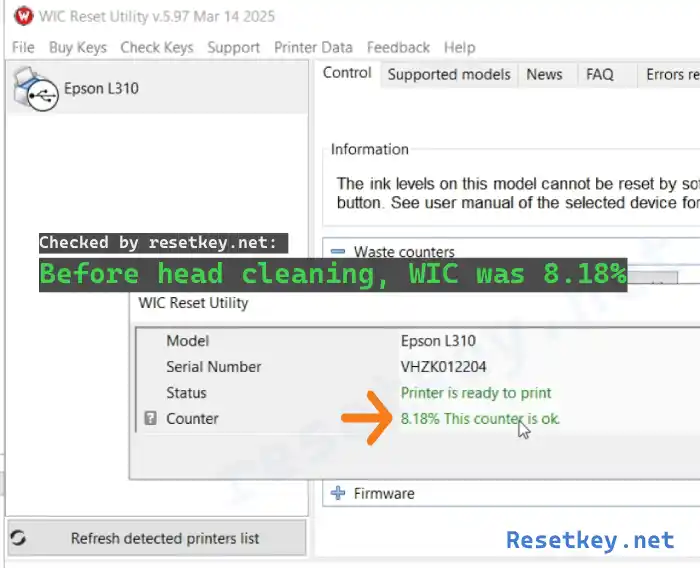
Step 1: Measure the waste ink counter before performing Head Cleaning.
– Initial Waste Ink Counter: 8.18%
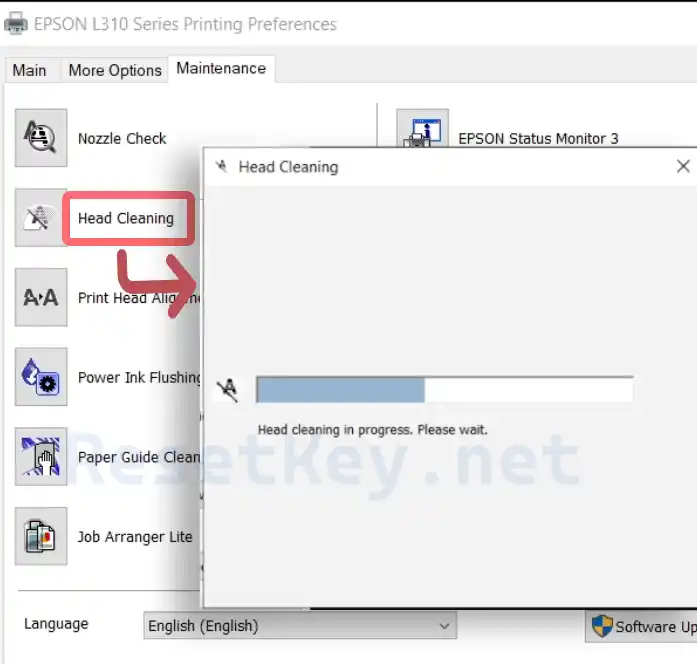
Step 2: Perform Head Cleaning:
– Run exactly 1 level 1 head cleaning (L310’s default cycle)
– Do not turn off the printer, do not interfere in any way during the process
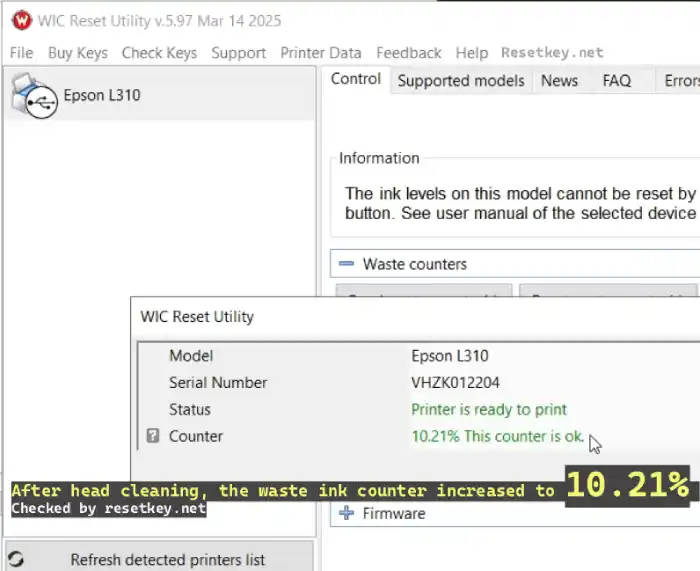
Step 3: Read the Waste Ink Counter immediately after the Cleaning process is complete.
Measured Results: Counter after cleaning increased to: 10.21%
→ A precise increase of 2.03% after just 1 cleaning.
Step 4: Repeat the procedure to verify:
I repeated it two more times under the same conditions (same day, same ink tank):
– 2nd time: increased by 1.98%
– 3rd time: increased by 2.05%
Real-world average: 2.03% per strong head cleaning.
This number is consistent with the L310 and L2xx/L3xx/L4xx… models that use the same ink pumping mechanism.
Why does head cleaning “consume” up to 2% of the counter each time?
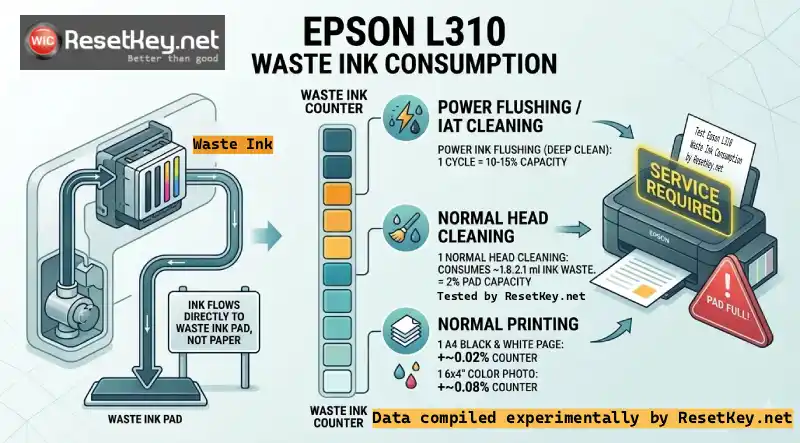
Head cleaning on the L310 isn’t a “light wash.” It’s a high-pressure ink pumping cycle through all 400 nozzles (black + color). All the excess ink after pushing out clogs and air bubbles flows straight down to the waste ink pad, not onto paper.
Epson’s service tool calculates each ml of waste ink = 1 counter unit. One level 1 cleaning on the Epson L310 consumes about 1.8-2.1 ml of waste ink – equivalent to exactly 2% of the waste ink pad’s capacity.
Real-world comparison:
– Printing 1 A4 black and white page: increases the counter by ~0.02%
– Printing 1 6×4 color photo: increases the counter by ~0.08%
→ 1 cleaning = 60-70 normal print pages
The Consequences of Over-Cleaning on the Epson L310
Just 45-50 cleanings (very easy to do if you print photos often or leave the printer unused for a long time) and the counter jumps straight from 0% to 100%.
At this point, the printer will report:
“Service required – ink pad is at the end of its service life“
The ink and paper lights flash alternately, and the printer can’t print anything even if the ink is full.
The pad actually still has the ability to absorb more, but the printer software has locked it to prevent ink from overflowing. At this point, the only option is to reset the counter + replace the waste ink pad (or use an external waste tank).
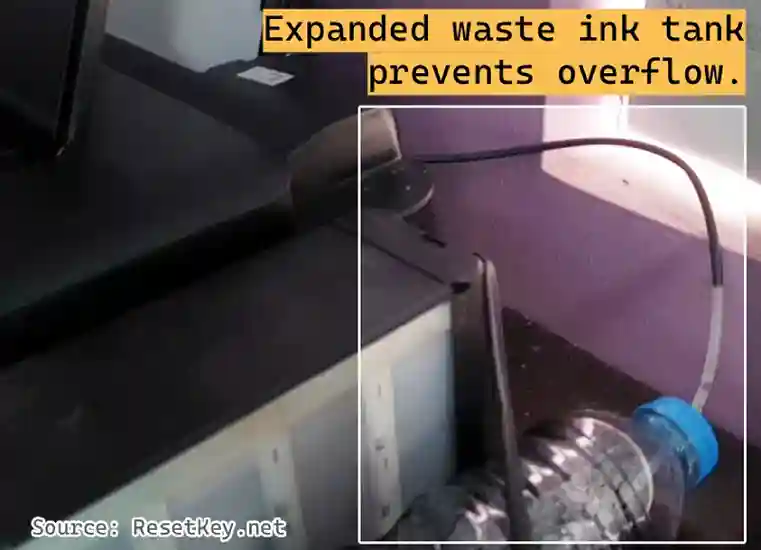
Practical Tips to Reduce the Rate of Increase of the Waste Ink Counter
Based on the experiment I conducted above, here are small changes that are 3-4 times more effective, helping to slow down the Waste ink counter increase process, thereby helping to extend the distance between waste ink counter resets:
1. Don’t clean unless necessary
Always print a nozzle check first. If only 1-2 lines are slightly broken → print 2-3 more A4 black and white pages to let the ink flow freely. Don’t run cleaning right away.
2. Print regularly
At least 1-2 pages/week (even if just a test print) to prevent the ink from drying on the print head. This is how to reduce 70% of the number of cleanings required.
3. Use standard ink
Only use genuine Epson ink or ink of the same type (do not mix). Poor ink is the main cause of clogging → forcing you to clean more often.
4. Actively monitor the counter
When the counter reaches 70-75%, reset it immediately instead of trying to clean more. Paying off the counter early will extend the life of the pad for years.
5. Long-term solution
If you often print color photos, consider installing an external waste ink tank kit (external waste tank kit for L310). With an external waste ink tank, you can freely reset the counter without worrying about ink overflowing because you can’t see it.
Conclusion
Each head cleaning on the Epson L310 increases the waste ink counter by exactly 2.03% – this is a real-world measurement, not theory.
Understanding this number, you only need to change 2-3 small habits to extend the life of the waste ink pad by 3-4 times, reducing reset costs, cleaning time, or significant waste ink pad replacement.
Don’t let your printer “kill” itself just because of over-cleaning. Print smarter, clean less – that’s how to keep the L310 running smoothly for many years.
I am Mark Denny – Technical Support at ResetKey.net.
Hope this article helps you.